Auto Data Recovery (ADR) is a great feature of QuickBooks Desktop that lets you get back your important QuickBooks data in case of data corrupted. But the process of data recovery could take a while and might seem tedious for new users who aren’t aware of how to use the tool. Read this article to learn about how to use the QuickBooks Auto Recovery Tool. Thus, keep reading..!
Features of QuickBooks Auto Data Recovery
- The ADR tool can help you locate and recover your lost data by restoring your lost transactions with your current Transaction Log file and your Company file.
- This tool can bring back all transactions up to the last few hours by using a copy of both your Company file and your Transaction Log file.
Procedure to get back transactions using the. QBW.adr and .TLG files
- At first, you should make a new folder on your desktop called QBTest.
- Then, go to the Folder where the company file is kept.
- To make it easier to find the company file folder, you can press F2 or Ctrl+1 on your keyboard to bring up the Product Information screen and the No Company Open Window. There, you can find out where the company file is.
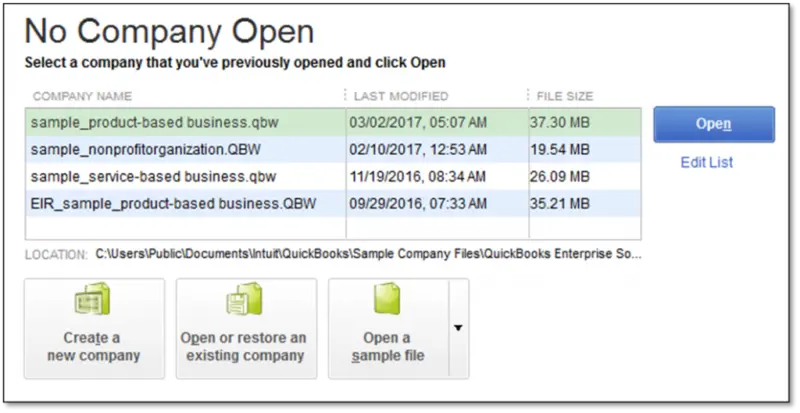
- Now, look in the Folder for a file called company that ends in .tlg.
- If you can’t find the.tlg file, you can also show file extensions and then find the File. Follow the steps below to do this:
- Press the Windows+E keys on your keyboard to open File Explorer. Now, go to the Organize tab.
- Choose Organize, then choose Folder and Search.
- For Windows 10, 8.1, and 8, go to the View menu and choose File name extension.
- Now, choose the option to hide file extensions for known file types.
- After that, click the Apply button and then the OK button.
- Copy the corresponding.tlg file from your company file and put it in the QBTest folder on your desktop.

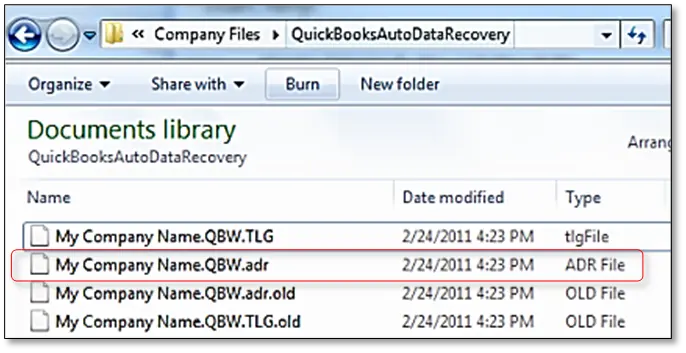
- Go to the QuickBooksAutoDataRecovery Folder as the next step. It can be found in the same folder as your company file.

- Cut out the and paste it. Put the file QBW.adr in the QBTest folder. Your QBTest Folder should now have a.QBW.adr and.tlg file.
- Right-click the button. Place the QBW.adr file in your QBTest folder and choose Rename.
- Take off the.adr at the end of the file name.
- Now, turn on the software for QuickBooks.
- You need to open the company file in your QBTest Folder this time. To ensure all transactions are present, use your account register.
- Choose File, then Utilities, and then Verify Data to make sure that the data in the recovered File is correct.

- If the copy of the company file from QBTest hasn’t been changed, you can move it back to where it was and move the damaged company file to a different place.
Recover recent transactions through .QBW.adr and .TLG.adr files
- First, make a new folder on your desktop and name it QBTest.
- Now, open the company file folder and look for the QuickBooksAutoDataRecovery Folder.
- You can open the Product Information screen and the No Company Open Window in QuickBooks by pressing F2 or Ctrl+1 on your keyboard. Herein, you can view the location of your company file.
- Look for files with the extensions.TLG.adr and.QBW.adr. These files have the same name as your company file.
- Now, open the File Explorer by pressing the Windows + E keys on your keyboard.
- After choosing Organize, choose Folder and search options.
- For Windows 10, 8.1, and 8, go to View and choose File name extension.
- Choose the option to Hide extensions for known file types.
- Click on Apply and then hit on Ok.
- Copy the .TLG.adr and the.QBW.adr files, then paste them into the QBTest folder created earlier.
- Take the .adr off the end of the file name in your QBTest Folder. As a result, your QBTest folder should now have.qbw and.tlg files.
- Now, launch QuickBooks.
- Now, open the company file after choosing the QBTest folder. To ensure all transactions are present, use your account register.
- Choose File, Utilities, and then Verify Data in the upper left corner to make sure that the data in the recovered File is correct.
- If this backup copy of the company file is correct, you can move it from QBTest back to where it was and move the damaged copy to a different place.
You may also read: How to Troubleshoot QuickBooks Error Code 6129?
Auto Data Recovery is an impeccable tool that can help you recover your valuable QuickBooks data. In this article, we have discussed the elaborate information related to QuickBooks Auto Data Recovery. If you need further help in this regard, just give us a call at 1-800-761-1787. Our QuickBooks support executives will be more than happy to assist you.